
AMZ Connect allows you to fetch Amazon product information directly into your Smart Displays. Instead of manually entering product details, AMZ Connect automatically imports the product title, image, price, and buy link from Amazon and keeps your product boxes accurate and up to date.
Perfect for:
• Affiliate marketers promoting Amazon products
• Niche websites and review blogs
• Product recommendation articles
• Gift guides and comparison posts
Before You Start #
Before using AMZ Connect, make sure you have:
• ClickWhale Pro installed and activated
• An AMZ Connect account
• Your AMZ Connect API key
• Your Amazon Associates Tracking ID
You can purchase an AMZ Connect subscription and receive your API key at: https://amzconnect.io/
Video Tutorial #
Prefer to watch instead? Follow the complete walkthrough below.
Step 1: Connect AMZ Connect to ClickWhale #
Navigate to: ClickWhale → Settings → Integrations
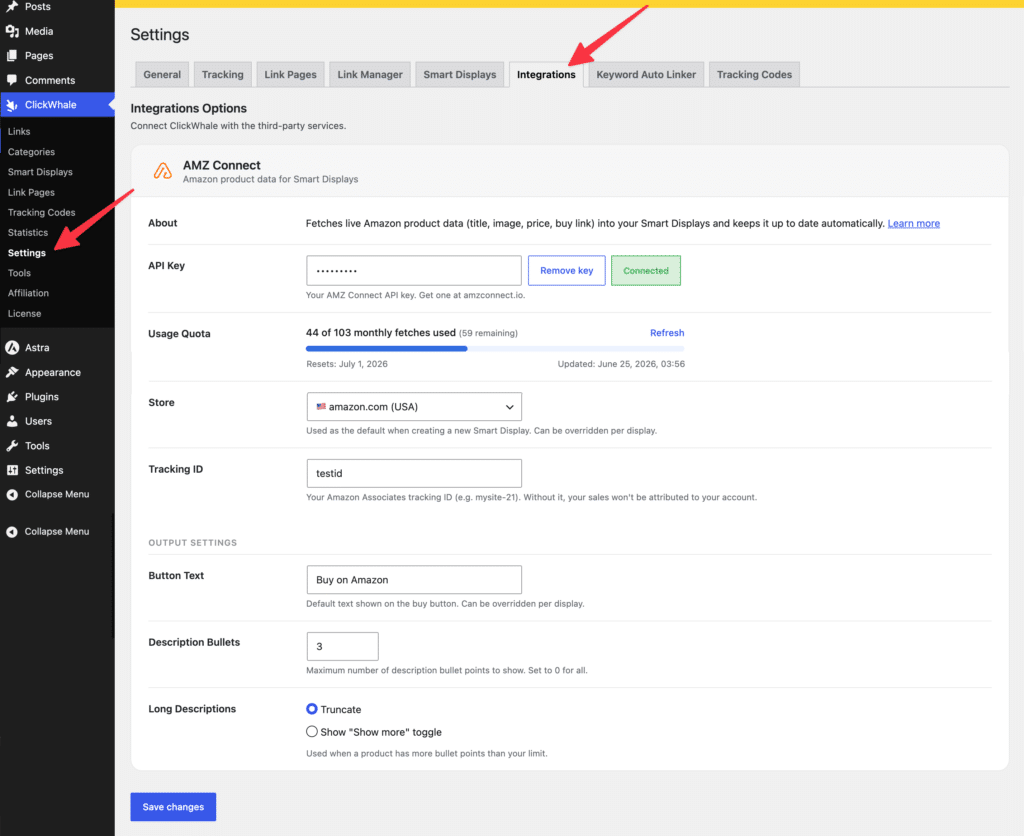
Under the AMZ Connect section, configure the following settings.
API Key
- To use AMZ Connect, you’ll need an API key. You can purchase an AMZ Connect subscription at: https://amzconnect.io/
- After purchasing, you’ll receive your API key. Paste the key into the API Key field.
- Once connected successfully, you’ll see the status: Connected
Usage Quota
- The Usage Quota section shows:
- The number of product fetches used during the current month
- The number of remaining fetches available
- The monthly reset date
- The last time your quota information was updated
- You can also click Refresh to retrieve the latest usage information.
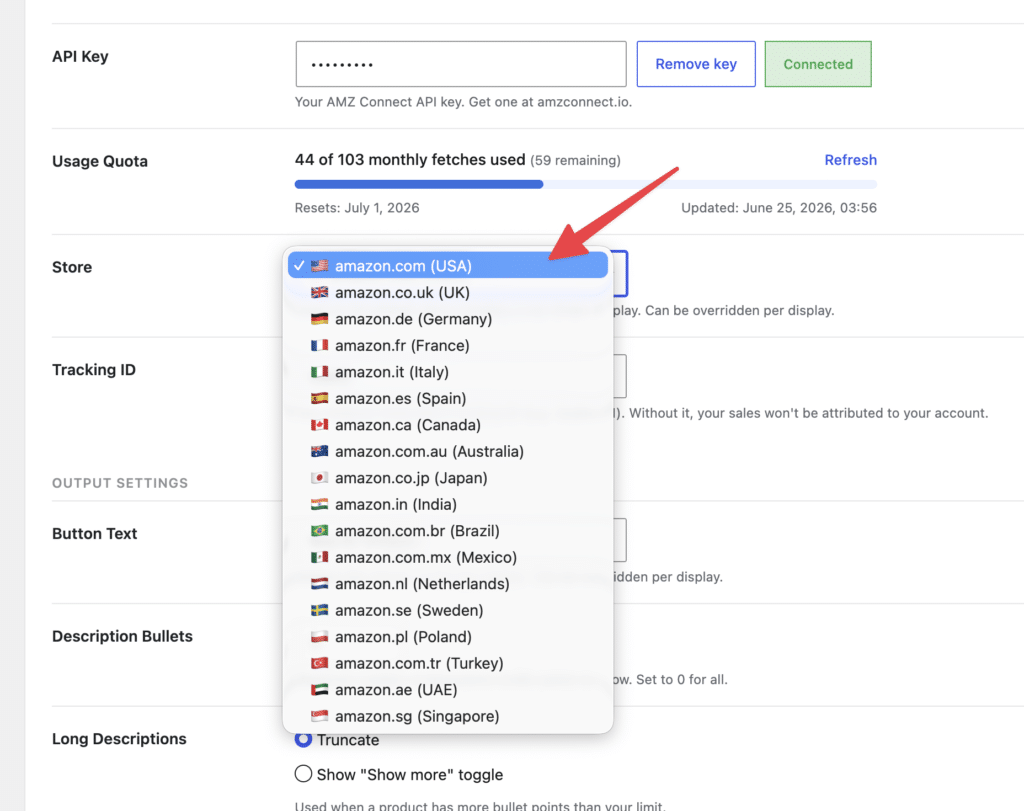
Store
- Select the Amazon marketplace that you use most often.
- This store will automatically be selected when creating new Smart Displays, although you can change it for each display individually.
Tracking ID
- Enter your Amazon Associates Tracking ID.
- Example:
mysite-21
- Example:
- Your tracking ID ensures that sales generated through your Smart Displays are properly attributed to your Amazon Associates account.
Output Settings
The Output Settings section lets you control how Amazon product information is displayed inside your Smart Displays.
Button Text
- Customize the button text that appears on your Smart Displays.
- Examples:
- Buy on Amazon
- Check Price
- View on Amazon
- Shop Now
- Examples:
- This value can also be overridden for individual Smart Displays.
Description Bullets
- Choose how many Amazon bullet points should appear in the product description.
- Examples:
- 3 = Display only the first three bullet points.
- 5 = Display the first five bullet points.
- 0 = Display all available bullet points.
- Examples:
- This setting helps you control the length of your product boxes and create a cleaner layout.
Long Descriptions
When a product contains more bullet points than your selected limit, you can choose one of two display options:
- Truncate
- Only display the number of bullet points specified in the Description Bullets setting.
- Show “Show more” Toggle
- Display the selected number of bullet points and allow visitors to expand the remaining content by clicking a Show More button.
- This option is useful when you want to keep your Smart Displays compact while still giving visitors access to the complete product description.
Once you’ve configured everything, click:
Save Changes
Step 2: Create or Edit a Smart Display #
Create a new Smart Display or edit an existing one.
If you’re new to Smart Displays, please refer to our guide:
How to Create and Use Smart Displays
https://clickwhale.pro/docs/article/how-to-create-and-use-smart-displays/
Step 3: Import an Amazon Product #
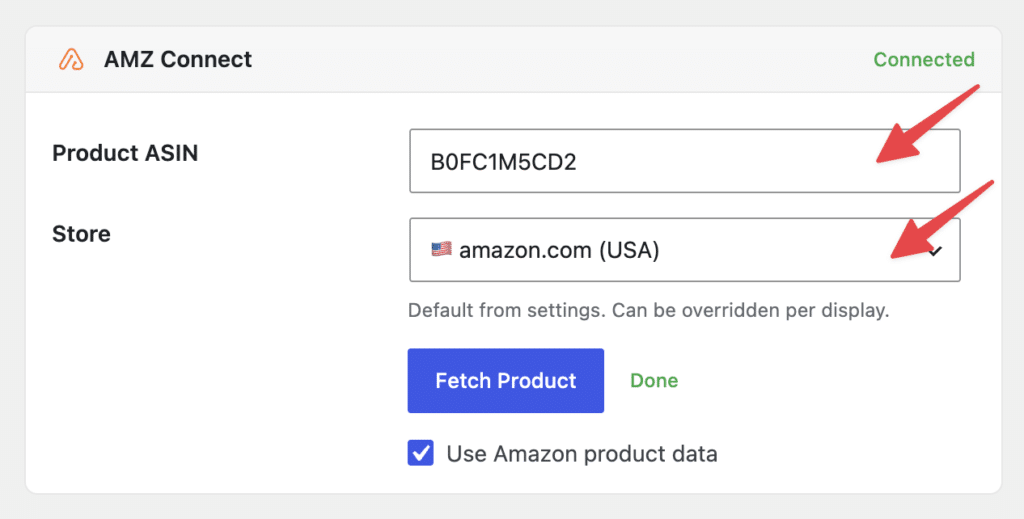
Inside the Smart Display editor, locate the AMZ Connect panel.
Enter the Product ASIN and Store, then click Fetch Product
Step 4: Review the Imported Product Information #
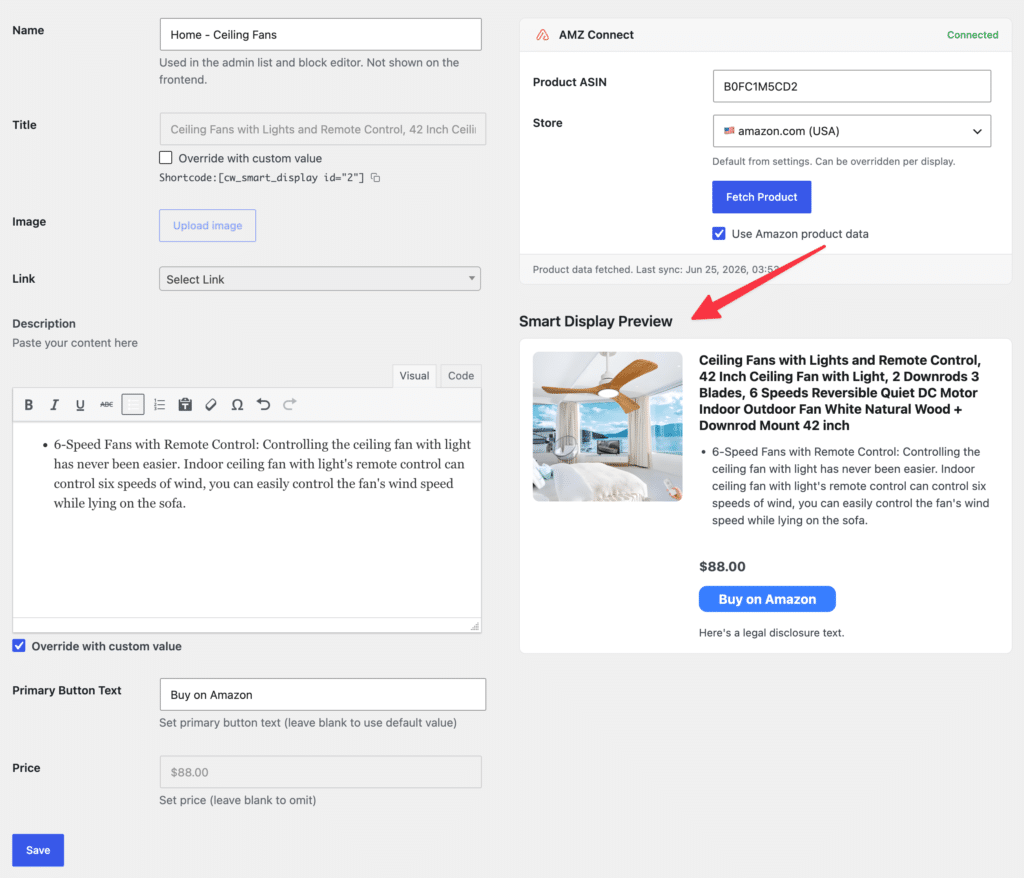
AMZ Connect automatically imports:
- Product title
- Product image
- Product description and bullet points
- Product price
- Amazon buy link
The imported description will follow the settings you configured under:
Description Bullets and Long Descriptions
A live preview will appear inside the Smart Display Preview section so you can immediately see how the product box will look on your website.
Step 5: Customize Your Display #
To keep the product information synced with Amazon, make sure the following Use Amazon product data option remains enabled. But if needed, you can still customize the Smart Display by. Just disable the Use Amazon product data to do so.
Step 6: Publish Your Smart Display #
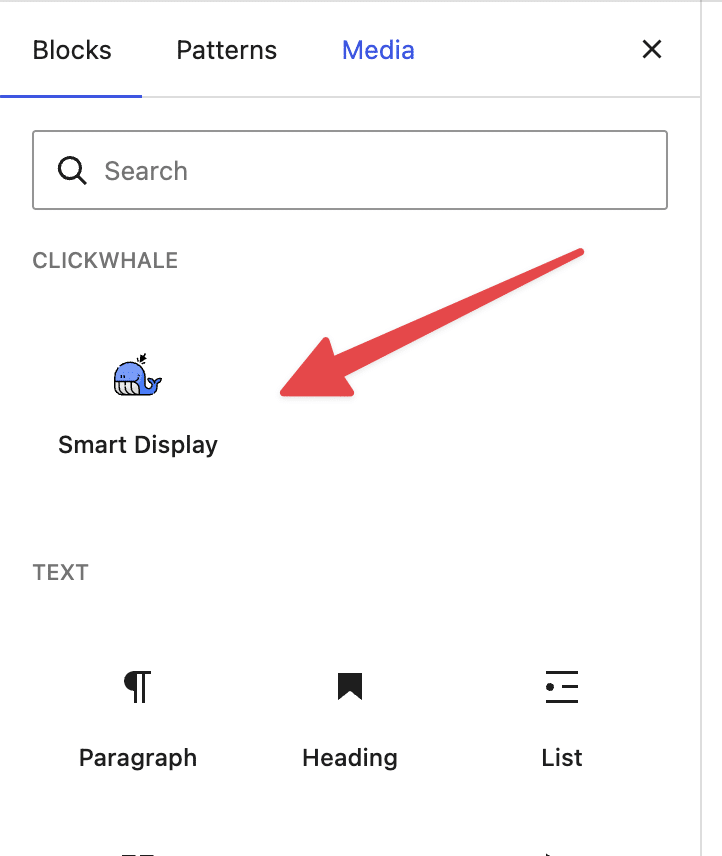
Save your Smart Display and insert it anywhere on your website using:
[cw-smart-display id="123"]Or add it using the ClickWhale Smart Display Gutenberg block.
Why Use AMZ Connect? #
AMZ Connect helps you:
- Build Amazon product boxes in seconds
- Automatically import product information
- Reduce manual data entry
- Keep product information accurate and up to date
- Create more engaging affiliate content
FAQs #
Where do I get my AMZ Connect API key?
You will receive your API key after purchasing an AMZ Connect subscription at: https://amzconnect.io
What is an ASIN?
ASIN stands for Amazon Standard Identification Number. Every product on Amazon has a unique ASIN that identifies the product.
Can I use products from different Amazon marketplaces?
Yes. Each Smart Display can use a different Amazon marketplace.
Will product prices update automatically?
AMZ Connect fetches product information directly from Amazon, helping keep your Smart Displays accurate and current.
Can I limit the number of Amazon description bullet points?
Yes. The Description Bullets setting allows you to choose how many bullet points are displayed in your Smart Displays. You can also enable the Show More toggle to let visitors expand and view the remaining product information.


