
UTM parameters help you identify where your website traffic comes from and measure the performance of your marketing campaigns across different platforms, channels, and content.
With ClickWhale, you can add UTM parameters directly to your managed links through the Link Manager without manually editing the Target URL. This makes it easier to organize, manage, and track your campaigns while keeping your links centralized.
Note: The UTM Parameters feature is available with ClickWhale Pro.
Before You Begin #
Before adding UTM parameters to your ClickWhale links, make sure the following requirements are met:
- ClickWhale Pro is installed and activated.
- You have administrator access to your WordPress dashboard.
- You have an existing ClickWhale link or are ready to create a new one.
If you haven’t created a ClickWhale link yet, see How-to Shorten Links and Create Redirects before continuing.
What Are UTM Parameters? #
UTM parameters identify campaign traffic, but they do not collect or display analytics by themselves. The destination website must use an analytics platform, such as Google Analytics, to record and report the campaign data.
By using UTM parameters, you can compare the effectiveness of different traffic sources, marketing channels, campaigns, keywords, and content variations. This helps you understand which strategies drive the most visitors and conversions.
Adding UTM parameters does not change the content or functionality of the destination page. They simply append tracking information to the Target URL, allowing you to collect campaign data without affecting the visitor’s experience.
How UTM Parameters Work with the Link Manager #
The ClickWhale Link Manager connects your shared ClickWhale link, the Target URL, and the configured UTM parameters. When someone clicks your ClickWhale link, they are redirected to the Target URL with any configured UTM parameters automatically appended.
It’s important to understand how these components work together:
- ClickWhale Link – The shortened or branded URL that you share with your audience.
- Target URL – The destination webpage where visitors are redirected after clicking the ClickWhale link.
- UTM Parameters – Additional tracking values that ClickWhale appends to the Target URL to help analytics tools identify the source and performance of your campaigns.
For example, when someone clicks your ClickWhale link, they are first redirected through ClickWhale and then sent to the Target URL with the configured UTM parameters attached. This allows you to track campaign performance while continuing to share the same ClickWhale link.
UTM Parameters Available in ClickWhale #
The UTM Parameters tab contains five optional fields that let you configure campaign tracking for your Target URL. Complete only the fields that apply to your campaign and analytics setup.
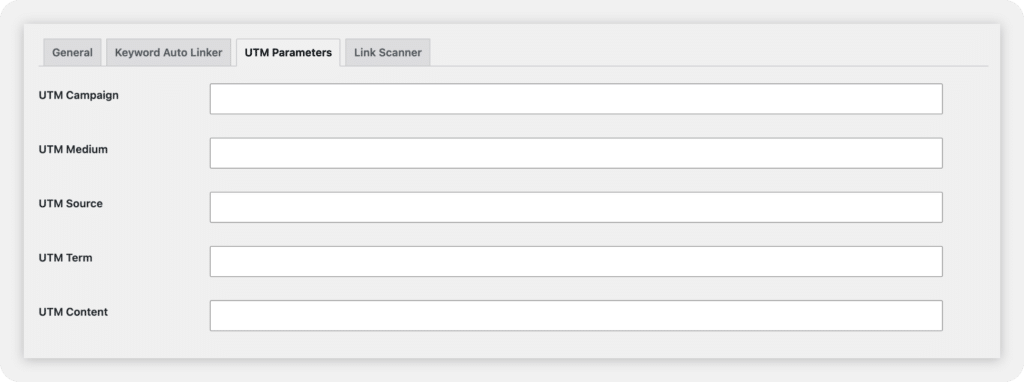
UTM Campaign (utm_campaign)
The UTM Campaign field identifies the specific marketing campaign associated with your link. Use a clear and descriptive campaign name so you can easily recognize it in your analytics reports.
Example: summer_sale_2026
UTM Medium (utm_medium)
The UTM Medium field identifies the marketing channel used to share your link. This helps distinguish traffic from different types of campaigns.
Example: social
UTM Source (utm_source)
The UTM Source field identifies where your visitors come from, such as a website, platform, or service.
Example: facebook
UTM Term (utm_term)
The UTM Term field is commonly used to track paid keywords or search terms. You can also use it to organize campaigns based on your own tracking strategy.
Example: wordpress_plugins
UTM Content (utm_content)
The UTM Content field helps differentiate similar links within the same campaign, such as different banners, buttons, or advertisements.
Example: blue_banner
How to Add UTM Parameters to a ClickWhale Link #
You can add UTM parameters when creating a new ClickWhale link or editing an existing one. ClickWhale will add the campaign information to the Target URL when someone opens the managed link.
1. Log in to your WordPress dashboard.
2. Go to ClickWhale > Links.
3. Create a new link or select an existing link to edit.
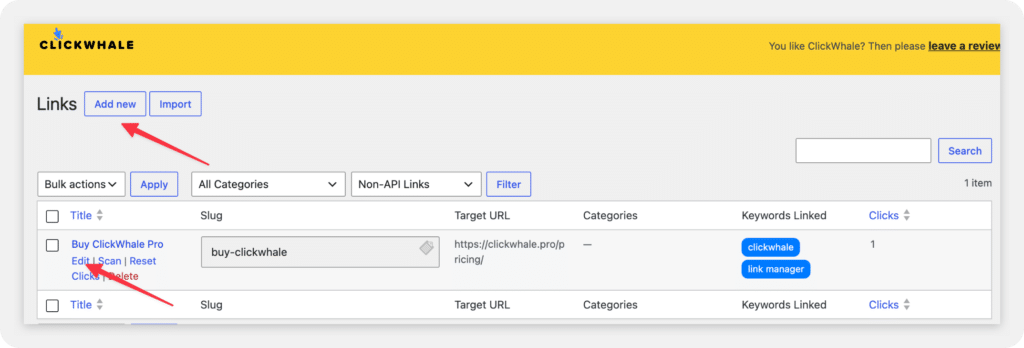
4. Enter or confirm the Target URL for the page where you want to send visitors.
5. Open the UTM Parameters tab.
6. Enter the campaign values that apply to your link:
– UTM Campaign, such as summer_sale_2026
– UTM Medium, such as social
– UTM Source, such as facebook
– UTM Term, such as wordpress_plugins
– UTM Content, such as blue_banner
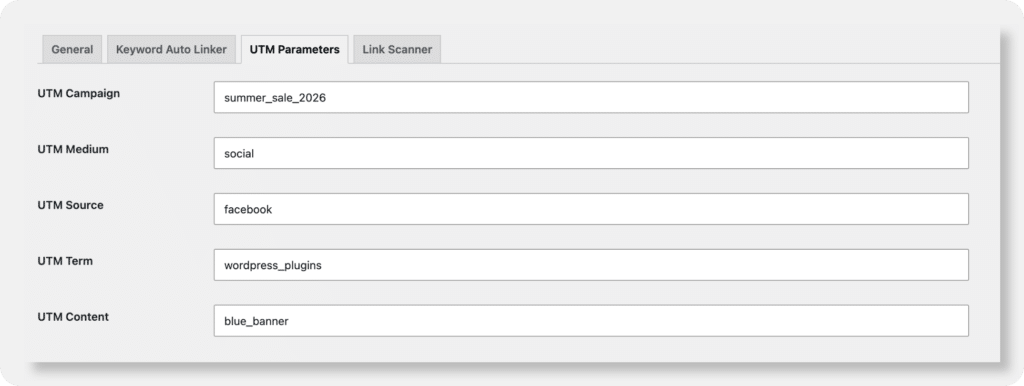
7. Save or update the link to apply the UTM parameters.
8. Copy the ClickWhale link and open it in a browser to confirm that it redirects to the correct destination with the UTM parameters included.
Example UTM Campaign #
The following example shows how UTM parameters can be used to track traffic from a Facebook post promoting a product.
Original Target URL
https://example.com/products/wordpress-pluginClickWhale Link:
https://example.com/go/wordpress-pluginResulting Destination URL:
Using the example UTM values above, the resulting destination URL will be:
https://example.com/products/wordpress-plugin?utm_campaign=summer_sale_2026&utm_medium=social&utm_source=facebook&utm_term=wordpress_plugins&utm_content=blue_bannerWhen someone clicks your ClickWhale link, they are redirected to the Target URL with the configured UTM parameters appended. Analytics tools can then use these values to attribute traffic to the correct campaign, channel, and content variation.
How to Test the Link #
After adding UTM parameters to your ClickWhale link, it’s important to verify that the link redirects correctly and includes the expected campaign information before sharing it with your audience.
- Copy your ClickWhale link after saving your changes.
- Open the link in a new browser tab or window.
- Confirm that the link redirects to the correct Target URL.
- Check the browser’s address bar to verify that the UTM parameters appear in the destination URL.
- Review each UTM value to ensure the spelling, capitalization, and naming match your campaign plan.
- If you find any errors, return to the UTM Parameters tab, update the values, save the link, and test it again.
Tip: Always test your campaign links before publishing them to ensure the destination URL contains the correct UTM values before sharing the link.
Best Practices #
Follow these best practices to keep your UTM parameters consistent and make your campaign reports easier to understand and analyze.
- Use lowercase values for all UTM parameters to maintain consistent reporting across analytics tools.
- Avoid spaces in UTM values. Use underscores (_) or hyphens (–) instead to improve readability and prevent inconsistencies.
- Create clear and descriptive campaign names that make it easy to identify the purpose of each campaign.
- Use different UTM values for each marketing channel or content placement to accurately compare campaign performance.
- Maintain a consistent naming convention across your team to keep reports organized and easier to interpret.
- Avoid including sensitive or confidential information in UTM parameter values, as they become part of the destination URL.
- Test every campaign link before publishing or sharing it to ensure the destination URL and UTM parameters are configured correctly.
FAQs #
What are UTM parameters used for?
UTM parameters are used to track the performance of your marketing campaigns by identifying where your website traffic comes from. They help analytics tools measure traffic from different sources, mediums, campaigns, keywords, and content variations.
Do UTM parameters change my ClickWhale link?
No. UTM parameters do not change your ClickWhale link. They are appended to the Target URL during the redirect, while the ClickWhale link itself remains the same.
Can I add UTM parameters to an existing link?
Yes. You can edit an existing ClickWhale link, open the UTM Parameters tab, update the campaign values, and save your changes.
Which UTM fields are required?
The current ClickWhale Pro interface does not indicate that any of the UTM fields are required. You can complete the fields that are relevant to your campaign tracking needs.
Can I edit the UTM parameters later?
Yes. You can modify the UTM parameters at any time by editing the ClickWhale link and updating the values in the UTM Parameters tab.
Will editing the UTM parameters change the ClickWhale short URL?
No. Editing the UTM parameters only changes the tracking information added to the Target URL. Your ClickWhale short URL remains the same.
Where can I view the results of my UTM campaign?
You can view your campaign results in the analytics platform connected to the destination website, such as Google Analytics. The website must have analytics tracking configured, and you must have access to its reports. ClickWhale does not collect or display UTM campaign reports inside the plugin.
Is the UTM Parameters feature available in the free version of ClickWhale?
No. The UTM Parameters feature is available exclusively with ClickWhale Pro.


