
Smart Displays allow you to create attractive product boxes directly inside your content. They are ideal for affiliate products, recommended tools, software reviews, service promotions, and resource pages.
Each Smart Display can include:
- Product title
- Product image
- Description
- Price
- Call-to-action button
- ClickWhale link tracking
- Optional clickable title and image
You can insert Smart Displays anywhere on your website using a shortcode or the ClickWhale Gutenberg block.
Video Tutorial #
Prefer to watch instead?
Follow the complete walkthrough below:
Step 1: Create a New Smart Display #
From your WordPress dashboard, navigate to:
ClickWhale → Smart Displays
Click Add New to create a new Smart Display.
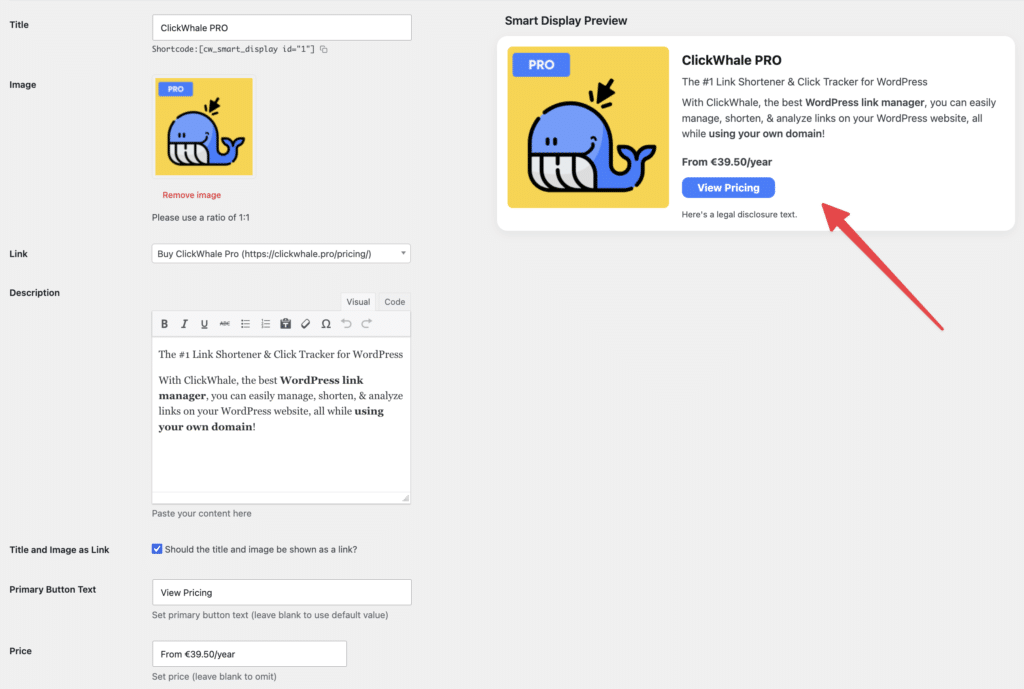
You will see a live preview on the right side of the screen, allowing you to see your Smart Display as you build it.
Step 2: Enter the Smart Display Details #
Title
Enter the name of the product, service, or offer you want to promote.
Example:
ClickWhale PROThe title will appear prominently inside the Smart Display.
Image
Upload or select a product image.
For best results:
- Use a square image
- Recommended ratio: 1:1
The image will be displayed alongside the product information.
Link
Select one of your existing ClickWhale links from the dropdown.
This allows you to:
- Track clicks
- Use your existing ClickWhale redirects
- View analytics inside ClickWhale
Example:
Buy ClickWhale ProDescription
Add information about the product or offer.
You can use the visual editor to format your content.
Example:
The #1 Link Shortener & Click Tracker for WordPress.

With ClickWhale, you can easily manage, shorten, and analyze links on your WordPress website while using your own domain.
Use this area to highlight key benefits and important selling points.
Title and Image as Link
Enable this option if you want visitors to be able to click the title and image.
When enabled:
- Product title becomes clickable
- Product image becomes clickable
Both will use the selected ClickWhale link.
Primary Button Text
Enter the text that should appear on the call-to-action button.
Examples:
- View Pricing
- Learn More
- Buy Now
- Get Started
- Visit Website
If left blank, ClickWhale will use the default button text configured in the Smart Display settings.
Price
Optionally display pricing information inside the Smart Display.
Example:
From €39.50/yearLeave this field empty if you do not want to display pricing.
Step 3: Save Your Smart Display #
Once you have completed all fields, click Save.
After saving, ClickWhale automatically generates a shortcode for the Smart Display.
Example:
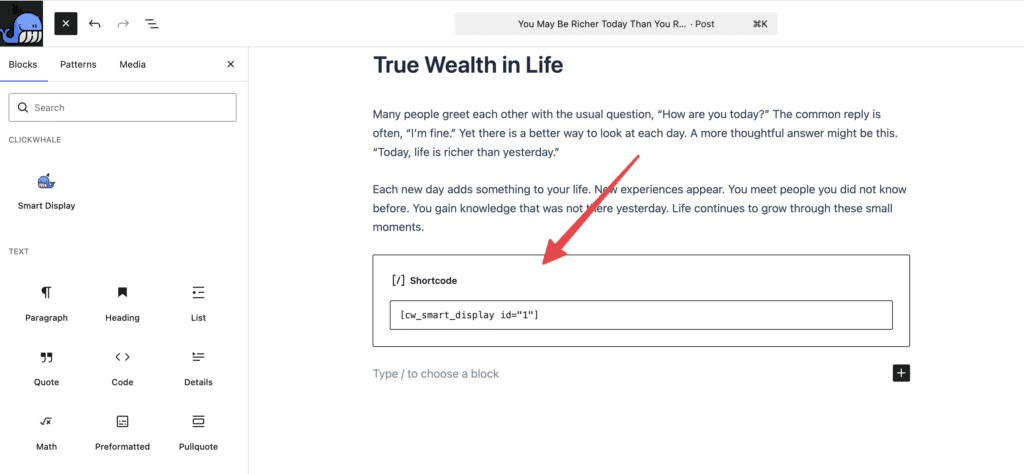
[cw_smart_display id="1"]You can copy this shortcode and use it anywhere on your website.
Step 4: Insert a Smart Display #
Using Shortcode
Open the post or page where you want to display the product box.
Paste the generated shortcode into:
- Paragraph block
- Shortcode block
- Classic Editor
Example:
[cw_smart_display id="1"]Update or publish the page.
Your Smart Display will now appear on the frontend.
Using the Gutenberg Block
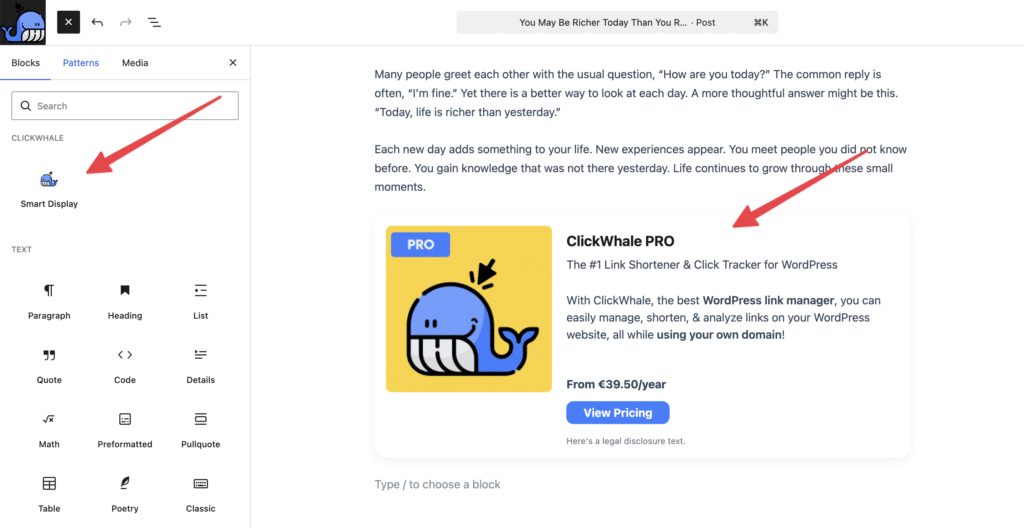
If you are using the WordPress Block Editor:
- Edit a page or post.
- Click the “+” button to add a block.
- Search for Smart Display.
- Select the Smart Display block.
- Choose the Smart Display you want to display.
- Save or update the page.
This method eliminates the need to copy and paste shortcodes manually.
Configure Global Smart Display Styles #
You can configure global settings for all Smart Displays by navigating to:
ClickWhale → Settings → Smart Displays
Disclosure Text
Add a disclosure notice that will automatically appear on every Smart Display.
Example:
This post may contain affiliate links. We may earn a commission at no extra cost to you.This is useful for affiliate marketing compliance.
Primary Button Styling
Customize the appearance of your Smart Display buttons:
- Button color
- Hover color
- Border color
- Border radius
- Text color
These settings automatically apply across all Smart Displays.
This helps maintain a consistent brand appearance throughout your website.
Example Use Cases #
Affiliate Product Reviews
Display recommended products directly inside review articles.
Resource Pages
Show your favorite tools and services in a consistent format.
Software Recommendations
Promote software products with pricing and direct call-to-action buttons.
Service Promotions
Highlight your own services with a professional product-style layout.
FAQs #
Can I create multiple Smart Displays?
Yes. You can create as many Smart Displays as needed.
Can I use Smart Displays with affiliate links?
Yes. Smart Displays work with your existing ClickWhale links, allowing you to benefit from click tracking, analytics, and link management.
Can I customize the button design?
Yes. Global button styling options are available under the Smart Displays settings.
Can I use Smart Displays with Gutenberg?
Yes. Smart Displays can be added using either a Gutenberg block or a shortcode.
Is Smart Displays available in the free version?
Yes. Smart Displays are available in the free version of ClickWhale.
Can I make the image and title clickable?
Yes. Enable the Title and Image as Link option when creating the Smart Display.


